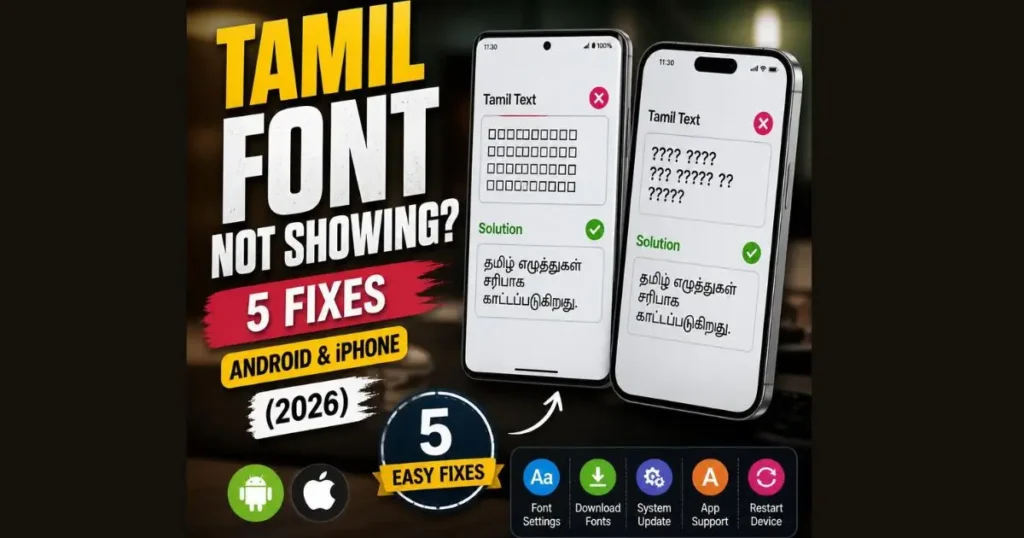
Tamil font not showing on your phone? Seeing boxes or question marks instead of Tamil text? Here are 5 proven step-by-step fixes for Android and iPhone that actually work.
📑 Quick Navigation
First, Understand Why Tamil Font Is Not Showing
Seeing strange boxes, question marks, or gibberish where Tamil text should be? You are not alone — this is one of the most common complaints from Tamil phone users. The good news is that it is fixable in under five minutes in most cases. Below are five proven solutions, ordered from most likely to solve your problem to least. Start with Fix 1.
Your phone needs two things to display Tamil text properly — a Tamil font file in the system and a rendering engine that can process Tamil Unicode characters. When either is missing, outdated, or not activated, Tamil characters fail to render. Read our detailed Tamil Font Encoding Guide to understand this better.
Identify your symptom:
This is the single most effective fix — it resolves the problem for the majority of users. Many phones come with Tamil font files already installed but the language is not activated. Adding Tamil tells the operating system to load its Tamil rendering support.
🤖 ANDROID
- Open Settings → System → Language & Input (or General Management → Language on some phones)
- Tap Languages → Add a Language
- Find and select Tamil (தமிழ்)
- You do not need to make Tamil your primary language — just adding it to the list is sufficient
- Restart your phone
🍎 IPHONE
- Open Settings → General → Language & Region
- Tap Add Language → select Tamil
- Choose “Keep [your current language]” when prompted
- Restart your iPhone
If Fix 1 did not solve the problem, your phone’s software may be too old. Tamil Unicode rendering has improved significantly in newer OS versions.
🤖 ANDROID Check version: Settings → About Phone → Software Information. Update: Settings → System → System Update.
🍎 IPHONE Check version: Settings → General → About. Update: Settings → General → Software Update.
Tamil font improvements are sometimes included in monthly security patches, not just major version upgrades — so install every available update.
Some budget Android phones ship with incomplete font packages that are missing Tamil characters. Installing Google’s Gboard keyboard can fix this because Gboard has its own Tamil rendering engine.
- Open Play Store → search “Gboard” → Install or Update
- Set Gboard as your default keyboard
- Open Gboard Settings → Languages → Add Keyboard → Tamil
- Restart your phone
Installing Gboard with Tamil forces your phone to download Google’s Tamil font assets, which often fixes Tamil display issues across all apps — not just the keyboard.
Samsung-specific tip: Check Settings → Display → Font Size and Style. If you have switched to a third-party font, it may lack Tamil characters. Switch back to Samsung’s default font, which supports Tamil.
Sometimes the problem is not with your phone at all — the Tamil text itself may be encoded in a legacy format like Bamini, SaiIndira, or Vanavil. Non-Unicode Tamil text will never display correctly on mobile phones, regardless of how new your device is.
How to identify non-Unicode text:
- The text shows as apparently random English letters like “jkpo;” or “Njha;” — this is almost certainly Bamini-encoded Tamil
- Tamil displays correctly in a PDF image but turns into English characters when you try to copy-paste it — the document was created using a non-Unicode font
- The text was created before approximately 2005-2008 — higher probability of non-Unicode encoding
If Tamil displays correctly in some apps but not in one specific app (for example, works in Chrome but not WhatsApp), the issue is usually corrupted cached rendering data in that particular app.
🤖 ANDROID
- Settings → Apps → find the problematic app
- Tap the app → Storage → Clear Cache
- Force close the app and reopen it
🍎 IPHONE
- Force close the app (swipe up from App Switcher)
- Wait a few seconds, then reopen the app
- If the problem persists, delete and reinstall the app from the App Store
- Also try a full phone restart: power off → wait 30 seconds → power on
For app-specific Tamil font issues, also check our dedicated guides for WhatsApp Tamil Font and Instagram Tamil Font.
Quick Summary — Which Fix to Try First
| # | Fix | Best For | Success Rate |
|---|---|---|---|
| 1️⃣ | Add Tamil language in Settings | Most users | ~60% |
| 2️⃣ | Update phone software | Outdated OS users | ~20% |
| 3️⃣ | Install Gboard + Tamil | Budget Android phones | ~10% |
| 4️⃣ | Convert non-Unicode text | When text is in Bamini/TSCII | ~7% |
| 5️⃣ | Clear app cache | Single-app display issues | ~3% |
Frequently Asked Questions
Why does WhatsApp show boxes □ instead of Tamil?
Can I install Tamil fonts on iPhone manually?
My phone is too old to update. Any alternatives?
Tamil works in Chrome but not in WhatsApp. Why?
Some Tamil characters display correctly but others are broken. What should I do?
Why does Tamil break in Instagram bio but works in DMs?
How to fix Tamil font not showing in Facebook?
What is the best Tamil keyboard app for Android in 2026?
Does dark mode affect Tamil font display?
Why is my Tamil PDF not readable?